

Save Your Chart Grid Layouts for Easy Retrieval
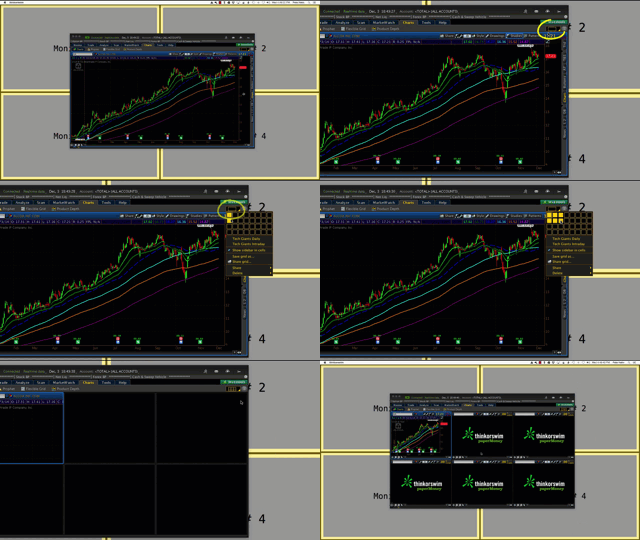
Thinkorswim Saving Chart Grid Layout
UPDATE 6/29/22: The newest video on this topic is located the following webpage (located in the bonus material section at the end of part one):
Thinkorswim Chart Setting Tutorial 3 Part Series
Click here to jump straight to the section of that video which demonstrates the newest functionality:
Thinkorswim Chart Settings Tutorial Part 1 @ 39:18
Part 1 of a 3 part series demonstrating how to configure the Thinkorswim platform to display on multiple monitors. In part 1 you learn how to configure and save chart settings. This video also demonstrates how to save chart settings as a custom style. This custom style is then used to quickly configure additional charts. You will also learn how to customize and save the chart grid layout.
Part 2 of this series builds on the work of part 1. It demonstrates how to configure and save chart layouts in the Flexible Grid screen of the Thinkorswim platform.
If you are already familiar with these tools, you can skip straight to part 3 in the series. Part 3 demonstrates how to create duplicate windows in the Thinkorswim platform. These windows are then assigned to display your saved custom chart layouts. Four duplicate windows are created. You are then shown how to distribute them across four separate monitors. You then learn how to save that as a workspace layout. This workspace remembers where each window is placed. The saved workspace can be reloaded at any time. Multiple workspaces can be saved.
DISCLAIMER: I AM NOT A CERTIFIED FINANCIAL ADVISOR AND NOTHING IN THIS VIDEO OR TEXT IS AN ADVERTISEMENT OR RECOMMENDATION TO BUY OR SELL ANY FINANCIAL INSTRUMENT. NOR IS THIS VIDEO OR TEXT INTENDED TO INSTRUCT YOU ON HOW TO MAKE BUY OR SELL DECISIONS USING ANY OF THESE INDICATORS.
*Thinkorswim is a chart analysis platform offered by TD Ameritrade: www.tdameritrade.com
TD Ameritrade provides financial services including the trading of Stocks, Futures, Options and Forex.
Please be sure to share this page with your friends and colleagues. Leaving comments below is the best way to help make the content of this site even better.
I have a grid of 8 currency charts in TOS that I have saved in grid form. How do I start a whole new set of blank charts and save as a different grid with different currencies and different indicators?
Thank you so much
Neena
The process is exactly the same as saving your very first chart grid layout. The process is very straight forward: Create –> Save –> Create –> Save. Once you perform the first you simply repeat as needed.